
Filter your board and act on many leads at once
Use the filters above the board to see only some leads; they stay saved for you. To act on many leads at once, select their cards and use the bar at the bottom of the screen, or a column's menu.
Filter and sort
- Source, Date, Lead type, and Assignee when you work with a team.
- My area, when your business serves specific places: Sure only keeps posts that name a place in your areas; Sure and likely adds posts that name no place but come from a group in your areas.
- Sort orders the New column: Hodorak order, Newest first or In my area first.
Your filters and sort are saved for you in this business until you change them; the search text is not. While a filter is on, the page says Filtered, and Clear all removes them all.
Select many leads
- On a computer: point at a card and tick the box in its corner. Hold Shift and click another card to select every card between them in that column.
- On a phone: press and hold a card, then tap the others.
The bar at the bottom offers Move to, Hide, Not a lead and Lead. After a hide or a move, Undo puts them back. Not a lead on many leads asks first, takes no reason, and has no undo: restore them one by one from Archived.
Act on a whole column
The ⋯ button at the top of a column opens Select all, Move all to…, Hide all and All not a lead. Select all selects the cards shown; the other three act on every lead in that column that passes your filters, after a confirmation that shows the count.
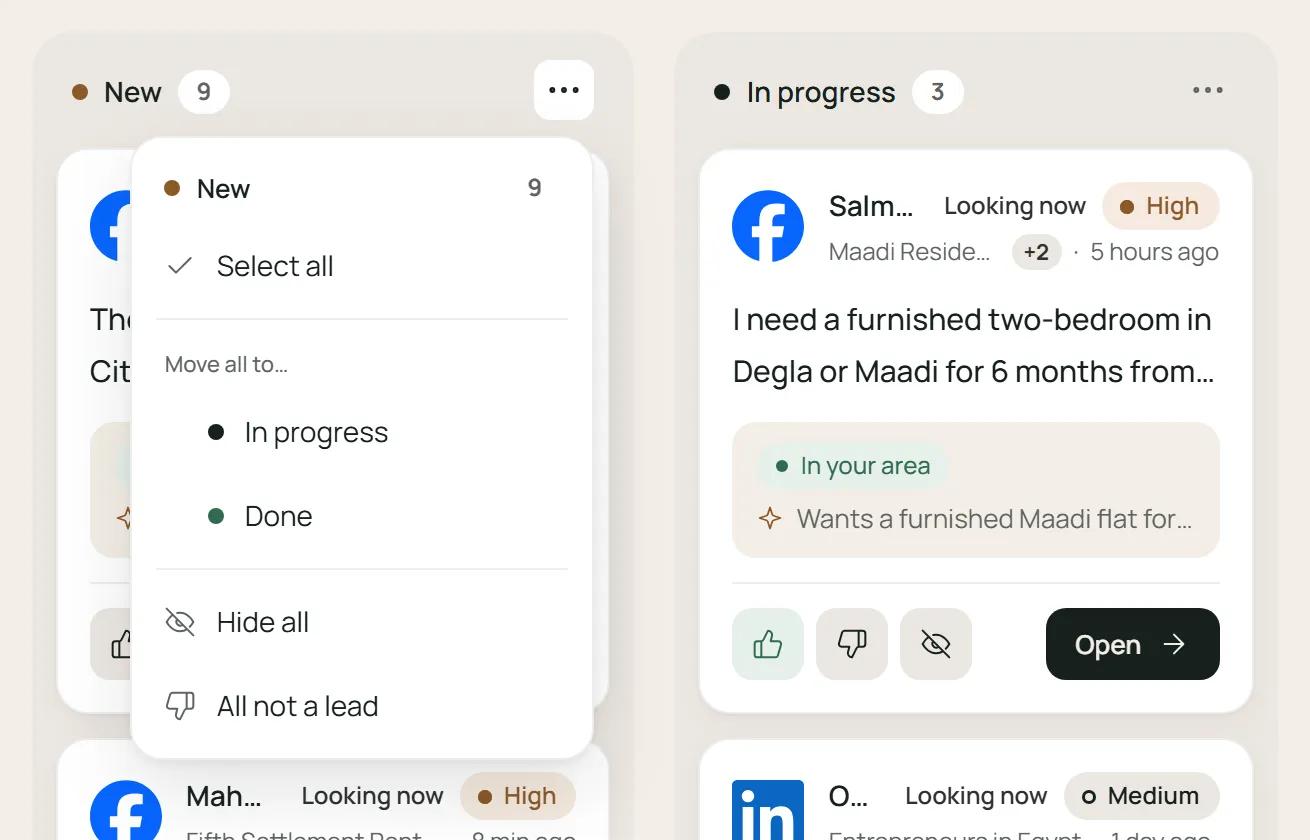
Hide tidies the board only; Not a lead teaches Hodorak (which one to use).
Was this helpful?
Can't find your answer?
Contact usor write to support@hodorak.com