Install and connect the Hodorak extension
Add Hodorak from the Chrome Web Store, approve its pairing code on the Hodorak page that opens, and confirm your Facebook account. You do it once per browser, on Google Chrome or Microsoft Edge on Windows.
Install the extension
- Open Hodorak on the Chrome Web Store in Chrome or Edge, and add it.
- The extension's page opens, Connect this browser to Hodorak. Press Connect your Hodorak account, and the Hodorak page opens. Sign in if Hodorak asks you to.
Approve it on the Hodorak page
At Approve connecting this browser, check the details; to compare the Pairing code, press Page didn't open? in the extension. If you have more than one business, choose it under Which business does it read for?. Then press Approve and connect.
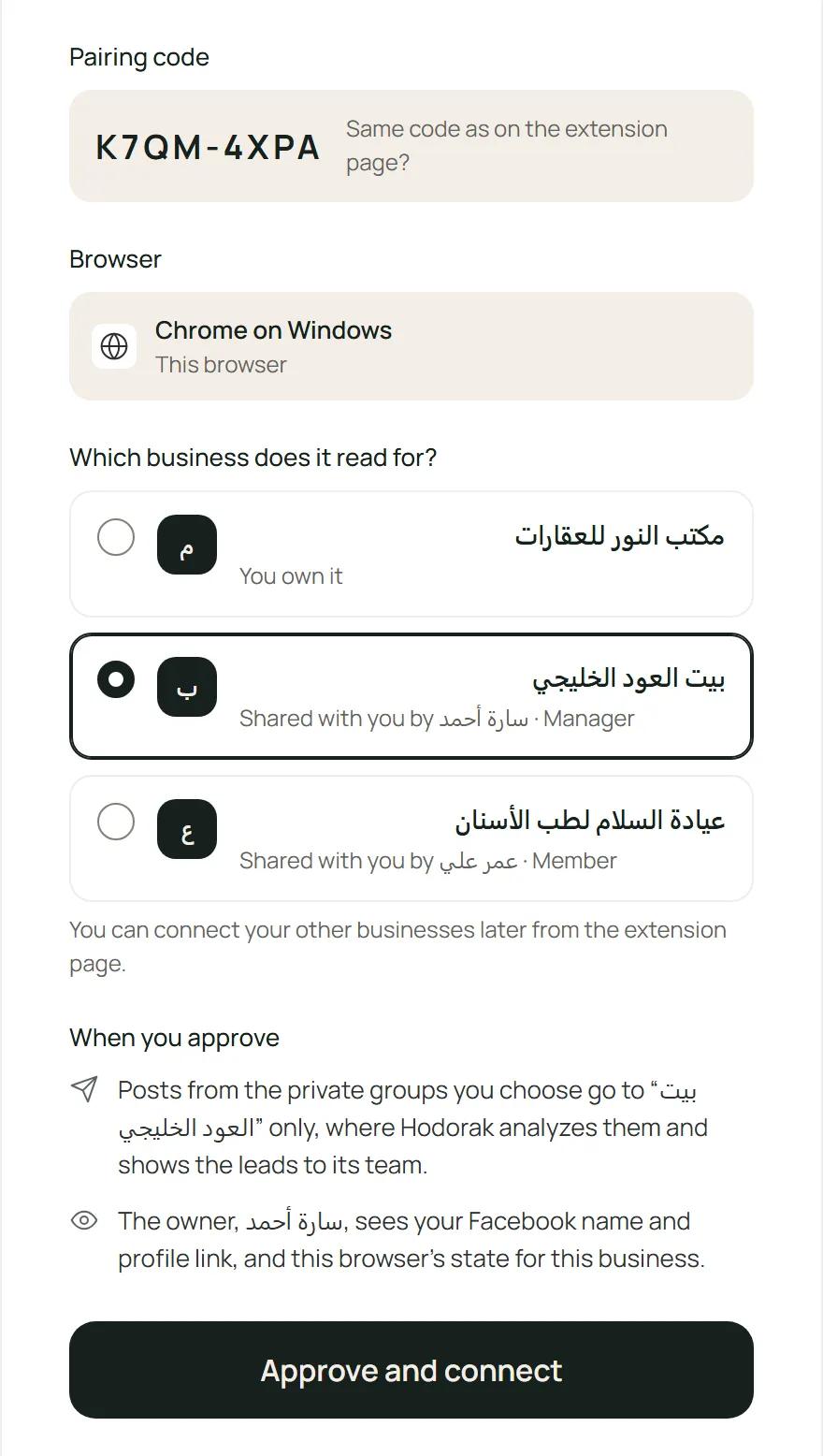
Back in the extension, at Confirm your Facebook account, press Use this account if it shows your own Facebook profile. At All set, choose your groups on the Sources page: follow a private group. If the code expired, press Start a new pairing in the extension.
What it does, and what it never does
- It reads from one pinned Facebook tab that it opens itself, and never uses your other tabs.
- It reads only the private groups you share the reading of, while you use the computer. It stops when you step away and catches up when you are back.
- It stops as soon as Facebook shows a warning. No one can promise that Facebook will never limit an account.
- It never posts, comments, reacts or sends messages, never joins groups, never reads your Facebook password, and never reads the rest of your browsing.
Who sees what
The business owner sees your Facebook name and profile link, and the state of your browser for that business. Connected browsers, on the Sources page, lists your browsers that read for the business (the owner sees everyone's); there you can remove one.
Was this helpful?
Can't find your answer?
Contact usor write to support@hodorak.com